


Let’s be real… if you had to log into Pinterest every single day just to post a pin, you’d probably lose your mind, right? As a busy business owner, there are about a million better ways to spend your time. However, if you’re here on my site (welcome 👋), you’re likely already familiar with the power of Pinterest to market your business. And you want in.
The good news? You don’t have to log into Pinterest every single day. Scheduling pins on Pinterest is completely free and takes way less time than you think. In this post, I’m walking you through exactly how to do it so you can set it, forget it, and get back to the work you actually like doing.
Let’s walk through it step by step.
📌 But first, pin this for later!
Can You Schedule Pins on Pinterest?
Yes! Pinterest has a free, native scheduling tool built right into the platform. If you want to get started marketing your business, it doesn’t cost a thing. The only thing you need to access it is a Pinterest business account, which is also free.
You may need: How To Set Up a Pinterest Business Account
There are plenty of other Pinterest-approved scheduling tools out there that you can choose from. But if you’re just starting out (or simply don’t want to pay) you can get exactly what you need from the native scheduler. For most small business owners just getting started, it’s more than enough.
How to Schedule Pins on Pinterest
What You Need Before You Start
Before we dive in, let’s make sure you have a few things ready to go. You’ll need:
- A Pinterest business account
- Your pin graphics or videos ready to upload
- Your URLs (i.e., the blog post, product page, or website link you want your pin send people to)
- Your pin titles and descriptions ready to copy and paste
Getting these things together before you open the scheduler will make the whole process so much smoother.
📝 FIELD NOTE: I organize all my information in Google Sheets. Here are some of my other favorite Pinterest tools that are a part of my workflow.
How to Schedule a Pin on Desktop
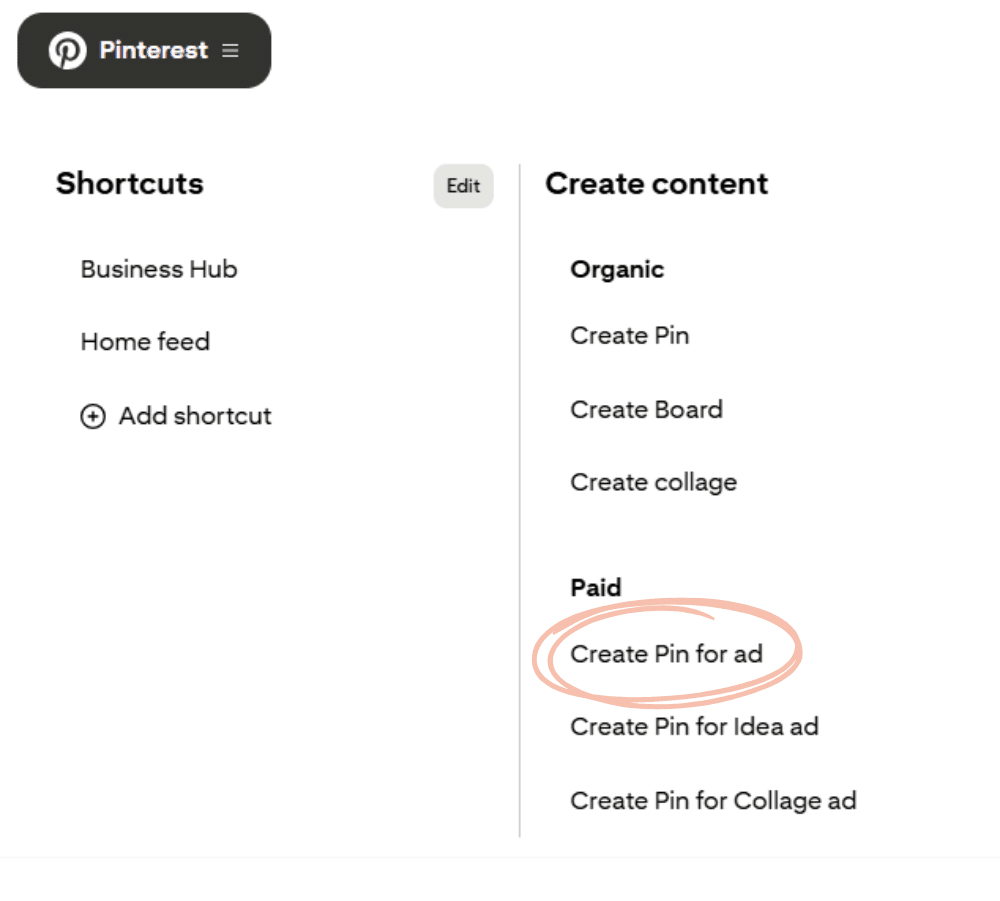
- Log into your Pinterest business account and click Pinterest in the top left corner. Then select Create Pin for ad. (Even if you’re not running ads, this is the option you want to use.)
- Upload your image or video.
- Add your keyword-rich title and description.
- Add alt text if you wish.
- Add your URL.
- Choose the board you want to save it to. ⚠️CAUTION: It’s really easy to accidentally hit “Publish” right beside the board name. Make sure you only hit that red button when you’re finished.
- Select Publish at a later date at the bottom of the scheduler.
- Pick your date and time.
- Hit Publish!
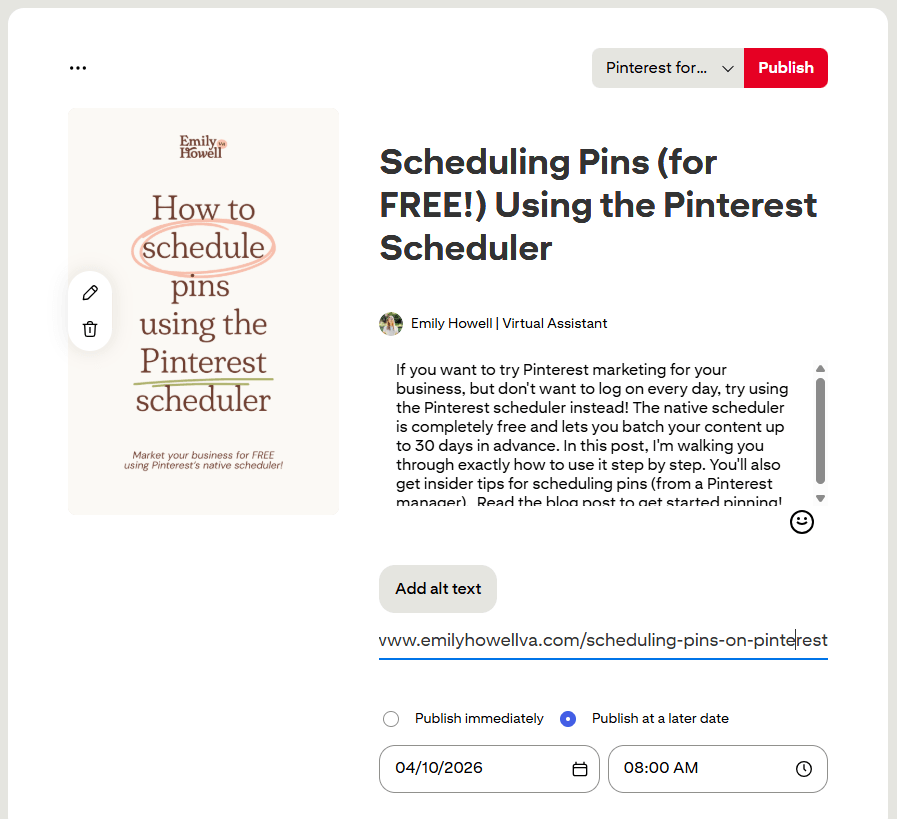
And that’s it! You’ve got a scheduled pin! 🎉
📝 FIELD NOTE: Once a pin is scheduled, you cannot edit the information in the pin. Make sure you’ve double checked everything before scheduling.
How to See Scheduled Pins on Pinterest
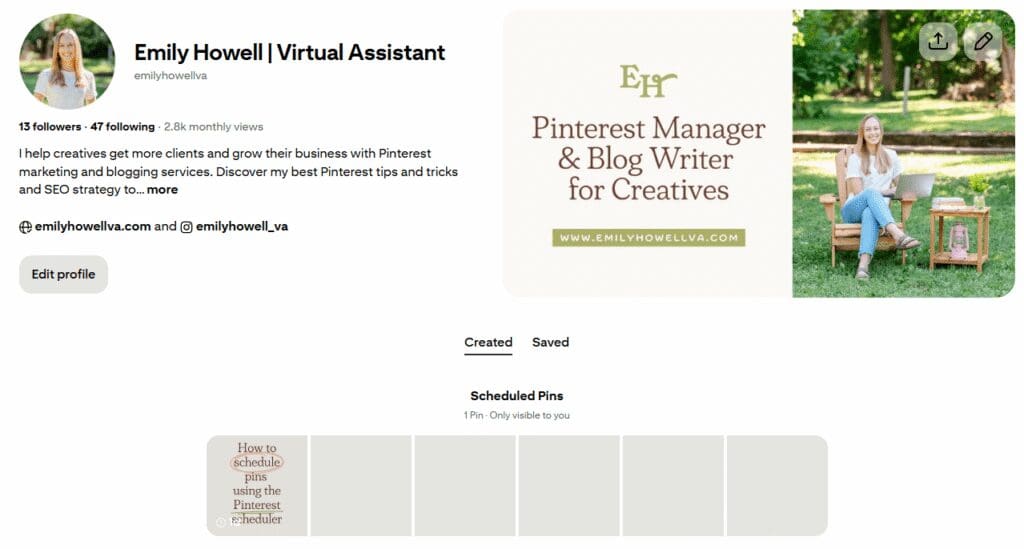
You can easily see your scheduled pins right on your profile. Make sure you’re in the Created tab, not the Saved tab. You should see a grid preview of your scheduled pins right below that tab. If you click on the grid, it’ll take you to a page where you can see all your pins at once.
You can’t really do much here (no editing, no rescheduling), but it is nice confirmation that your pins are queued up.
Important Tips for Scheduling Pins on Pinterest
Now that you’re an expert on scheduling pins on Pinterest, here are some important things you’ll need to know.
📌 Aim for at least 1 pin per day. Can you do more? Sure! But for many business owners, 1 per day is a doable number that won’t make you want to chuck your computer into the sea.
📌 Batch everything in one sitting. You don’t need to log in every day to schedule. With the native scheduler, you can schedule up to 30 days in advance. That means you can batch your content for the entire month in just one sitting. Create all your images, write all your titles and descriptions, and then schedule everything at once. After, close the tab and go touch grass.
📌 Don’t schedule everything to go out on the same day. Wayy back before I was a Pinterest manager, this was one thing I was never clear on: do I spread out my pins or schedule them for the same day? I’m here to tell you with 100% certainty that you should spread them out. The Pinterest algorithm actually rewards daily pinning with better reach. (We’ve got to keep the robots happy, right?)
Take a look at some of the other Pinterest mistakes I see business owners make.
Start Scheduling Pins on Pinterest Today
Pinterest is one of the best ways to drive traffic to your website, but only if you’re actually using it consistently. Scheduling your pins is an easy way to make sure you’re showing up daily. The native scheduler makes that completely manageable, even when life gets busy. Batch everything in one sitting and let Pinterest do the rest.
If you’d rather not deal with it at all, that’s what I’m here for! I offer full-service Pinterest management, one hour strategy calls, and account optimization services. Whatever stage you’re at, there’s a way I can help. Check out my services here.


+ Show Comments
- Hide Comments
+ add a comment