


One thing that blew my mind as I was first learning alllll about the world of blogging and SEO: Google doesn’t immediately know when you write a new blog post. 🤯 I had kind of assumed that the internet just sensed when a new, awesome piece of content was out in the world. But nope! Publishing a post doesn’t automatically mean Google will find it. If you want your blog post to appear in search results quickly, you have to “request indexing”.
If you’re like I was and have no clue how to tell Google you wrote a blog, have no fear! It’s honestly super easy to do, and I’m breaking it down step by step in this post.
📌 Pin this guide for later!
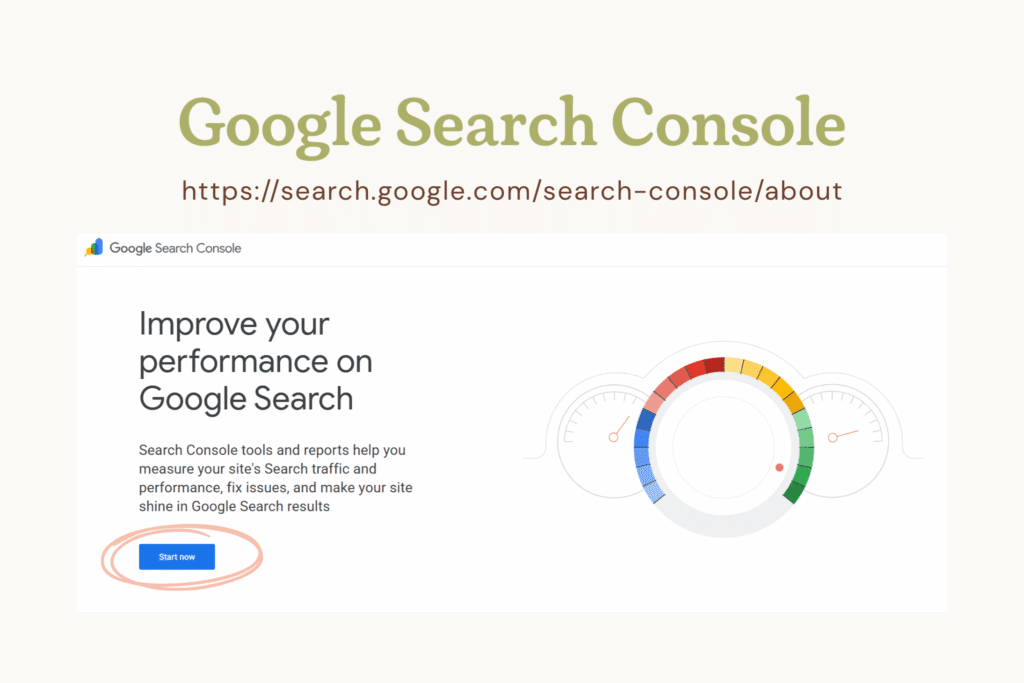
What Is Google Search Console?
Totally new to Google Search Console? Here’s a basic rundown of what it is.
Search Console is a free service provided by Google that lets you monitor your website’s performance in Google search results. It is a wealth of information for anyone with a website.
It tells you amazing things like…
- Which of your URLs are being shown in searches
- How many clicks you’re getting to a specific URL
- Which keywords people are typing to arrive at your site
- Who is linking to your website
And on top of all that, it allows you to request indexing of a blog post or website page you made. You don’t have to magically wait days or weeks for Google to stumble upon your page. You can speed things up by submitting a request.
Let’s go over how to do that.
How to Request Indexing on Google Search Console
Exciting news: requesting indexing on Google will literally take you 2 minutes. So quick and easy.
Once you’ve written and published your blog post, head to Google Search Console.
IMPORTANT: You must have your Google Search Console set up (i.e., connected to your website) before you request indexing. If you haven’t set it up, go do that and then come back to this post!
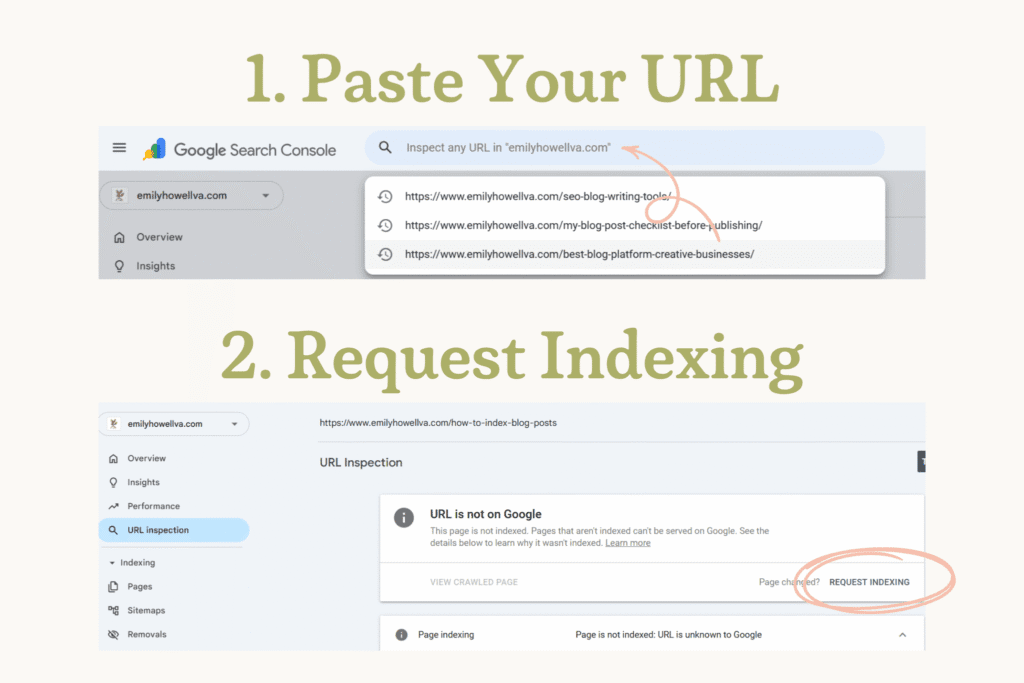
Step 1: Copy and Paste Your New URL
First you’re going to copy the URL of the new blog post you wrote. Then, you’re going to paste it where it says “Inspect any URL in [your website]”. You can find exactly where to paste it in one of two ways:
- Click on the URL inspection tab in the menu on the left OR
- Go directly to the search bar at the top
Step 2: Request Indexing
Once you’ve pasted the new URL, you’ll see a new page that says “URL is not on Google”. (If it already says “URL is on Google”, you’re good!) Right below that is a button that says “REQUEST INDEXING”. Go ahead and click it.
And that’s it! 🎉 Your URL will be placed in a queue to be indexed.
What Happens After Your Request Indexing on Google?
After you’ve requested indexing, your URL goes into a queue to be crawled and added to Google. Here are some common questions you might have about what happens next:
How long does indexing take?
Indexing usually takes anywhere from a few hours to a few days. Think of all the URLs out there in the world… Google’s got a lot of work to do. Don’t panic if your post doesn’t get indexed immediately.
FIELD NOTE: One of my favorite ways to get Google to find your content even faster? Go back to at least 2 of your old blog posts, and link to the blog you just wrote. 🔥 Internal linking helps Google understand your content AND keeps people on your site for longer. It’s a win-win!
What if it says “URL is on Google” already?
Amazing! That just means Google has already indexed this page. If you’ve recently updated an old post and want the changes registered, go ahead and click “REQUEST INDEXING” anyway. It’ll get Google to take a look at your new information.
Does indexing mean my post will rank in search results?
Sadly, no. Getting indexed means your blog post is eligible to appear in search results. Actually ranking for your target keyword(s) takes time, great content, and solid SEO strategies. But getting indexed is step one, and now you’ve got it down.
Want to up your blog game? You may be interested in…
- 11 SEO Blog Writing Tools I Use to Rank High on Google
- My Favorite Blogging Platform for Creative Businesses
- How to Write a Good Blog Post
Start Telling Google About Your Blog Posts
Turns out the internet doesn’t magically sense your new blog post, but a quick trip to Google Search Console can take care of that. Writing the blog post is the hard part. Telling Google about it is a piece of cake. The next time you write a post for your business, you’ll know exactly what to do!
Now excuse me while I go index this post. 😉
P.S. Don’t have the time (or the brain space) to write your own posts? Writing ✨SEO blog posts✨ for small business owners is literally my job. Check out my blog writing services!


+ Show Comments
- Hide Comments
+ add a comment