


If you’re a business owner trying to get your blog posts to show up on Google, having the right tools makes all the difference. SEO blog writing tools don’t have to be crazy complicated or cost you an arm and a leg. In fact, most of the ones I use every single day as a blog writer are free (or relatively cheap). Here’s exactly what I use to research keywords, write optimized content, prep my images, and track results. Let’s dive in!
📌 Save these tools for later!
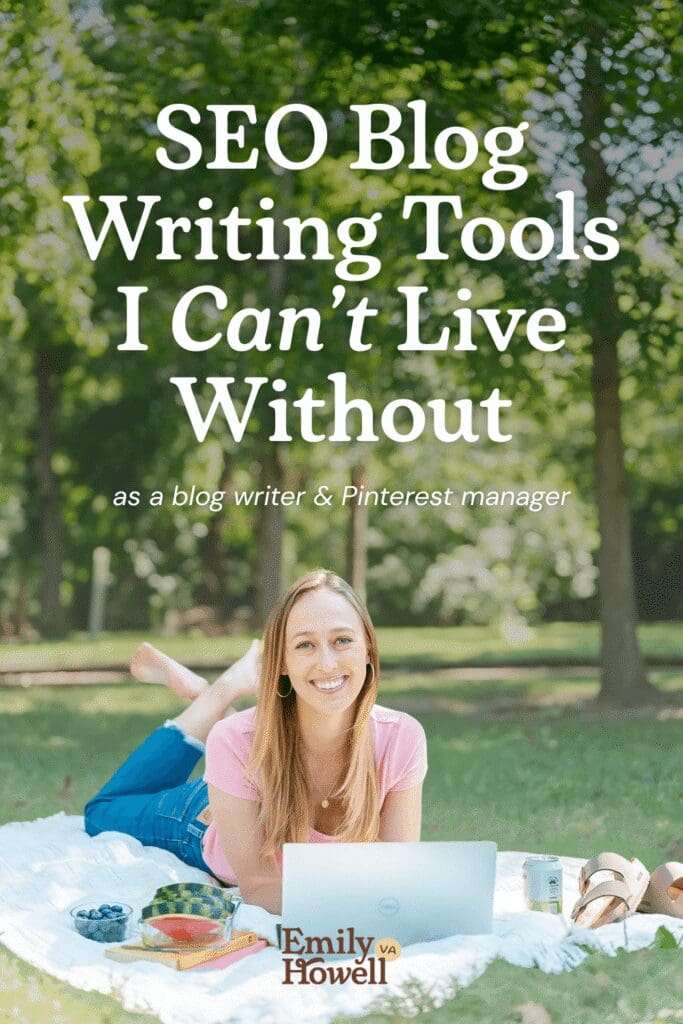
Table of Contents
Jump to…
Tools for Keyword Research
Ubersuggest
Why I Love It:
I use Ubersuggest for every single blog I write. It makes keyword research easy for people who aren’t SEO experts (literally most business owners). You can type in a keyword and see search volume, keyword difficulty, and a list of related keyword ideas. It’s a great starting point for figuring out terms your audience is searching for.
Cost:
There’s a free version with limited daily searches. Paid plans start at around $29 per month, OR you can pay a one-time lifetime fee that’s around $300. If you plan on blogging for your business for the next couple years, the lifetime fee makes sense.
Pros & Cons:
👍 It’s beginner friendly and gives you enough data to make good SEO decisions without being overwhelming. It’s also got the one-time lifetime fee, which is amazing for those of us who are tired of subscriptions (🙋♀️).
👎 The data Ubersuggest gives you isn’t as comprehensive as other tools like Semrush. If you want to get deep into the nitty gritty details of keyword research, you might want to check out another tool.
BONUS: On top of being a stellar keyword research tool, you can also track your ranking, analyze your website SEO, and see what terms your competitors are ranking for.
Answer the Public
Why I Love It:
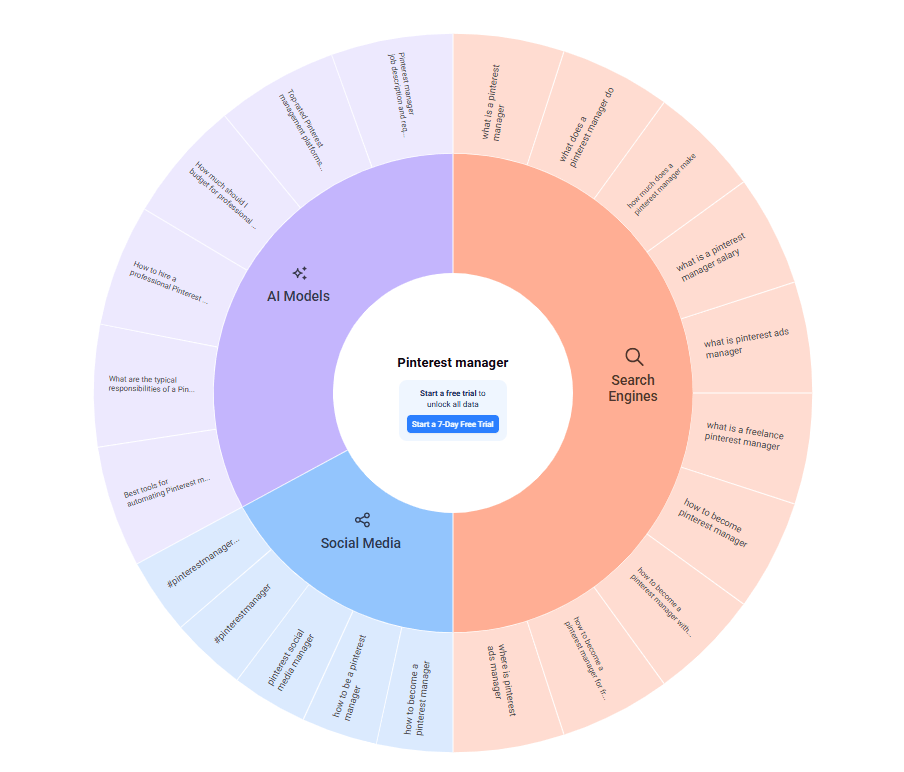
Answer the Public shows you all the questions people are typing into Google about a specific keyword. It’s really helpful for coming up with blog post ideas and understanding exactly what your audience is searching for.
Cost:
There’s a free version that gives you 3 free searches per day. The paid plan starts around $14 per month.
Pros & Cons:
👍 The question-based results are amazing for helping you come up with blog post ideas (long-tail keywords for the win!). Plus, your results are broken down visually into different sources like search engines, AI models, and social media platforms.
👎 Answer the Public pulls data from Google’s autocomplete, which isn’t always reliable and may not always give you the most relevant results (Keywords Everywhere). It’s a great place to start for content ideas; but you’ll probably want to supplement it with a more comprehensive keyword tool like Ubersuggest.
Why I Love It:
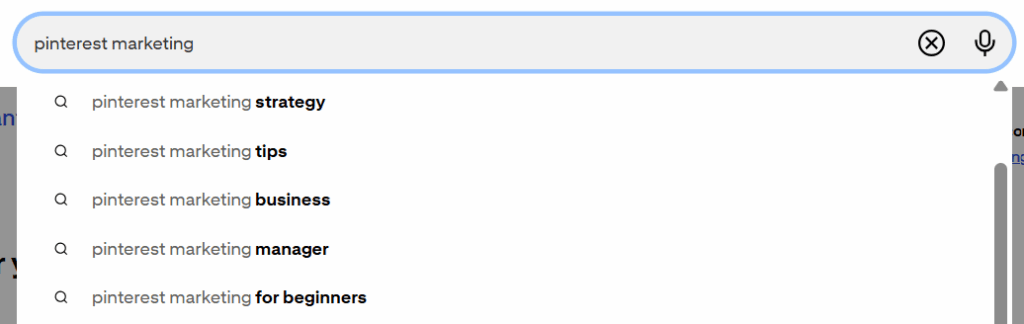
Pinterest is the most underrated keyword research tool for blogs. Just like Google, it’s also a search engine. That means that the search bar can be a keyword research tool. Type in any phrase and Pinterest will auto-populate a list of related search terms. Those are all keywords you can target! This is super useful if your ideal client is on Pinterest—you’re seeing exactly what they’re looking for and can plan accordingly.
Cost:
Using a Pinterest business account is completely free!
Pros & Cons:
👍 If you’re going to use Pinterest to drive traffic to your blog, you can easily see what people are searching for. You might even get additional ideas for keywords that may not be showing up on Google.
👎 Accessing search volume data on Pinterest is kind of complicated. It takes a few extra steps to get there, so it’s not as quick to use as a dedicated keyword research tool.
Tools for Blog Writing
Yoast SEO
Why I Love It:
This one’s for all the WordPress users out there (my absolute favorite platform for blogging). Yoast is one of my absolute favorite SEO blog writing tools. It’s a WordPress plugin that analyzes your blog post in real time and tells you exactly what to fix to improve your SEO.
It checks things like how many times you used your keyword, whether or not you wrote alt text, internal and external links, blog readability, search engine appearance, and more. It basically acts as a checklist so nothing slips through the cracks before you publish.
Cost:
The free version covers everything most businesses need (and is what I use myself!). The premium version is around $99 per year, and it’s got some really nice features. It’ll add automatic redirects if you change a URL, tables of contents, and internal linking suggestions.
Pros & Cons:
👍 Yoast works by a colored light system: red (problem), orange (needs improvement), and green (good). It’s really easy to see at a glance if you’re on the right track as you write your post. If you do have problems, it highlights them in the text. Plus, it’ll give you definitions for SEO terms you may not know, so you’ll learn a lot working with it!
👎 It only works with WordPress. If you’re on a different platform you’ll need to look for an alternative.
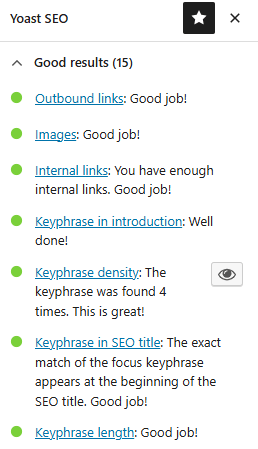
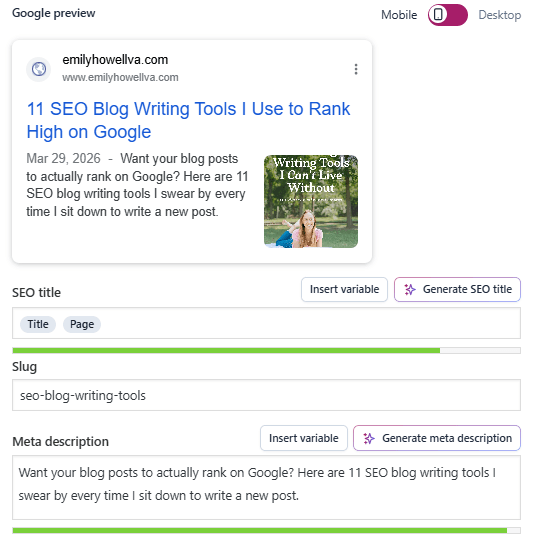
An example of my Yoast for this post! ☝️ If you don’t have Yoast, Google SERP Simulator can help you see how your post will appear on Google (similar to the second photo).
Hemingway
Why I Love It:
Did you know that the average American’s reading level is around 7th or 8th grade? Hemingway helps you simplify your text by analyzing for readability. It highlights sentences that are long, complicated, or using passive voice.
Hemingway analyzes your writing for readability and flags sentences that are too long, too complicated, or filled with passive voice. It’s basically a tough love editor that forces you to write more clearly, which is great for SEO because Google rewards content that’s easy to read.
Cost:
Most of the features are free, though there is an optional upgrade if you’d like to access AI tools.
Pros & Cons:
👍 It helps simplify your language for the masses and makes your content more accessible.
👎 If you follow it to a T, Hemingway just might take all the personality out of your post.
Headline Studio
Why I Love It:
Headline Studio scores your blog post headlines and gives you suggestions for making them more “click-worthy”. A compelling title is an important factor in whether people actually click on your post. I usually use it to check how my title scores. If it’s not so great, I’ll play around with wording.
Cost:
You can get 10 free credits per month on the free plan, but capabilities are limited. If you decide to upgrade to premium, you pay for how many monthly credits you want. 50 credits = $9/month. (To give you an idea, each time you search a title or make an adjustment, it’s 1 credit.)
Pros & Cons:
👍 It’s a quick and easy way to make sure your headline is doing its job.
👎 Your headlines can start sounding generic or click-baity if you follow every suggestion. Your voice and your audience matter more than the score. If you have a great title, don’t overthink it!
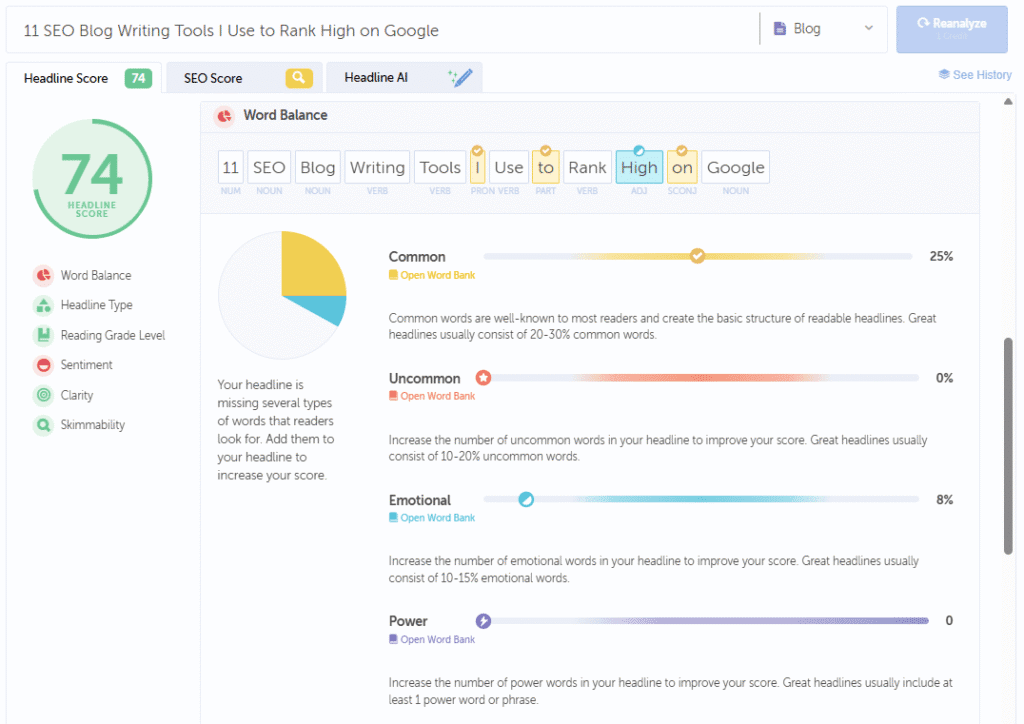
Headline Studio gave this post title a decent score, but also had some suggestions for me. We’ll have to see how it does in the long run. 😉
Capitalize My Title
Why I Love It:
You may think this one’s a little silly, and that’s okay! For me, title capitalization can be confusing and I don’t have all the rules memorized. I use Capitalize My Title all the time for my blog titles and headers, juuuuust to be sure. All you have to do is paste your title, select which style you’d like (I use MLA), and it’ll tell you which words to capitalize. The former English major in me loves the accuracy.
Cost:
Free!
Pros & Cons:
👍 It’s a tiny step, but it saves you from publishing a post with capitalization errors.
👎 Zero downsides.
Claude
Why I Love It:
Okay, to be honest, I don’t actually love Claude (or Chatty G for that matter). I recognize that AI is a useful tool to help businesses, but am also very aware of the environmental impacts. As someone who loves the environment, I aim to use it sparingly.
However, when I do use Claude, I ask it to…
- Help me outline posts
- Brainstorm additional ideas I didn’t think of
- Edit sections I’m stuck on
I don’t use it to write entire posts for me. because I know that my ✨unique✨ voice is irreplaceable and part of the reason clients want to work with me.
Cost:
There’s a free version if you don’t have that many questions to ask. Claude Pro is about $20 per month and gives you more usage and access to “smarter” models.
Pros & Cons:
👍 When you’re feeling stuck, it’s a great way to brainstorm new ideas or find gaps in your thinking.
👎 It has a serious impact on the environment. It gaslights you. 😒 It sounds like AI, even if you train it on your voice.
Tools for Blog Images
TinyPNG
Why I Love It:
Did you know that you should be compressing images you add to your blog? Compressing helps your images load faster on your website, which affects your page speed. (Page speed is a ranking factor.) Large, uncompressed images are one of the most common reasons blog posts load slowly. TinyPNG takes your large files and makes them…tiny!
Cost:
Free!
Pros & Cons:
👍 It’s super simple to use. Drag, drop, and download. The Panda’s kinda cute, too.
👎 You can’t upload images over 5MB, and you can only upload a certain amount of images at a time. There are plenty of other image compressors out there if TinyPNG doesn’t work for you!
Canva
Why I Love It:
I use Canva to create Pinterest pin graphics to put in my blog posts (just like the first image on this page!). Adding a pin image directly in your post makes it easy for readers to save your content to Pinterest, which drives more traffic back to your site over time. (Higher traffic is always a vote of confidence for Google that your site is valuable.) Canva makes it easy to create beeeeaaaautiful pins even if you have zero design experience.
Cost:
There’s a free version that is basic but useful for beginners. I personally opt for Canva Pro, which is around $150/year. With Pro, you get access to more templates, images, fonts, and can even create a brand kit.
Pros & Cons:
👍 It’s user friendly and the free version is genuinely useful.
👎 The pro version has a ton of options that might feel overwhelming at first. It has a bit of a learning curve to understand all the features, but it’s worth it.
Tools for Analytics
Google Search Console
Why I Love It:
Google Search Console shows you exactly how your blog posts are performing in Google search. It spells out which keywords you’re ranking for, how many clicks you’re getting for each term, and where you’re showing up in the results. It’s the most direct way to see whether your SEO efforts are actually working.
Cost:
Free!
Pros & Cons:
👍 It comes straight from Google, so the data is as accurate as it gets.
👎 It takes a few steps to set up and it has a bit of a learning curve if you’ve never used it before. But it really is worth taking the time to figure out.
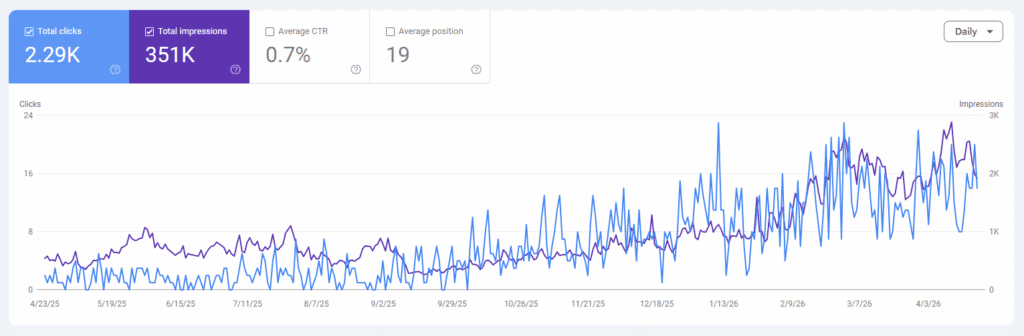
Example Google Search Console results from one of my blogging clients. ☝️ You can see exactly how many clicks her posts are bringing in!
Start Using These SEO Blog Writing Tools Today
So there you have it! You now know the SEO blog writing tools I use every single time I sit down to write a blog post for myself or my clients. They make the process so much easier, especially when you’re new to SEO and not sure where to start. Pick a few that you’re curious about, and give them a try! You don’t need all of them on day one, but trying out a few here and there may just lead to better posts. 😊
If writing your own blog posts isn’t something you have the time or energy for, that’s where I come in. I offer SEO blog writing services for creative business owners who want to get found on Google. Reach out today if you’re ready to get your blog working for you.
Love this post? You may also be interested in…


+ Show Comments
- Hide Comments
+ add a comment