


If you’re trying to figure out Pinterest for your business, it can be a lot at first. There are pins, boards, sections, analytics, and a ton of moving parts to learn. The good news is, it’s not quite as complicated as it looks once you understand how everything works.
Your Pinterest boards are one of the first things worth wrapping your head around. They’re the foundation of your whole account. They help tell Pinterest what your account is about and who should see your pins.
As a Pinterest manager for creative business owners, I’m going to walk you through what boards are, how to set them up, how many you need, what to do (and not do), and the how-to stuff like making a board private or merging two boards into one.
Let’s get going!
Pssst: If you don’t yet have a Pinterest business account, here’s a step-by-step guide to create one.
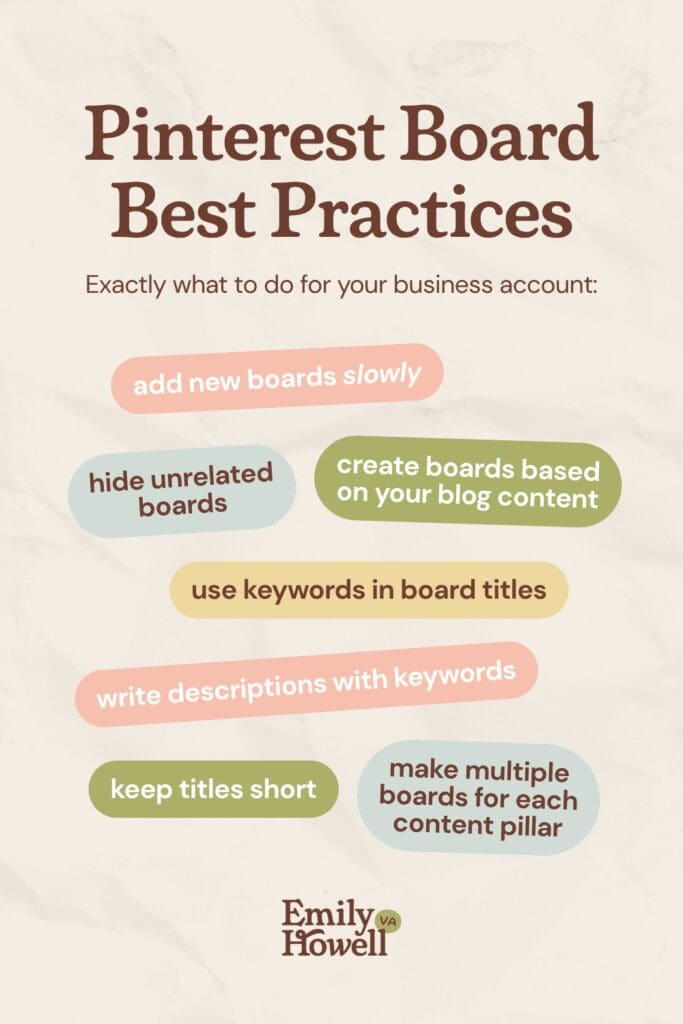
📌 Pin this guide for later!
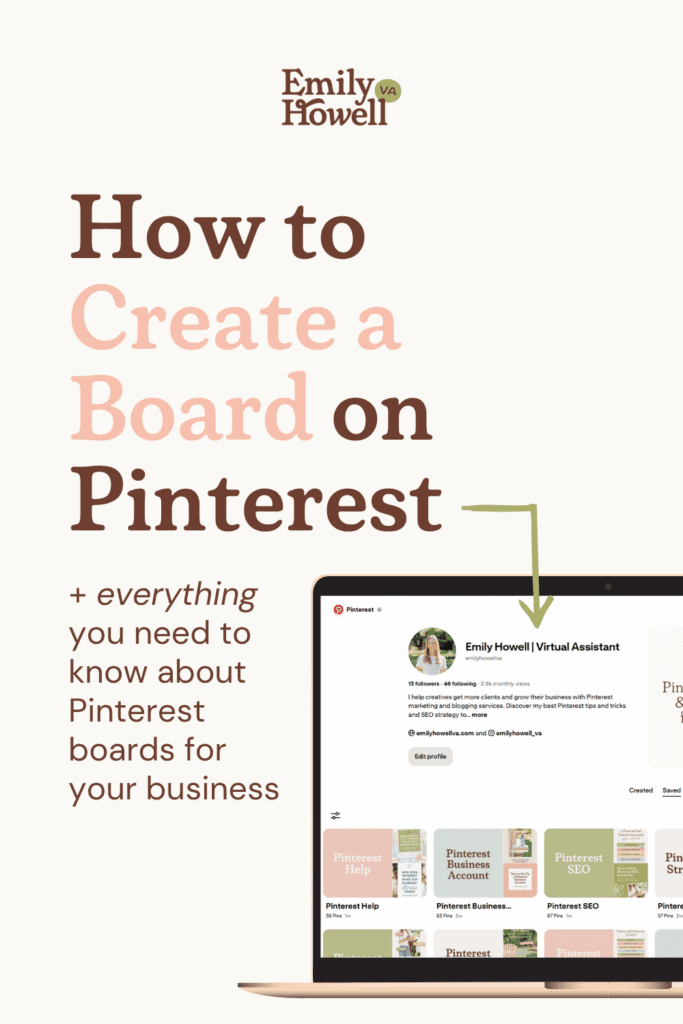
Table of Contents
- What is a Pinterest Board?
- How to Set Up Boards on Pinterest
- How Many Pinterest Boards Should You Have?
- Pinterest Board Dos & Don’ts
- Pinterest Board How-Tos
- Get Started Creating Your Pinterest Boards
What is a Pinterest Board?
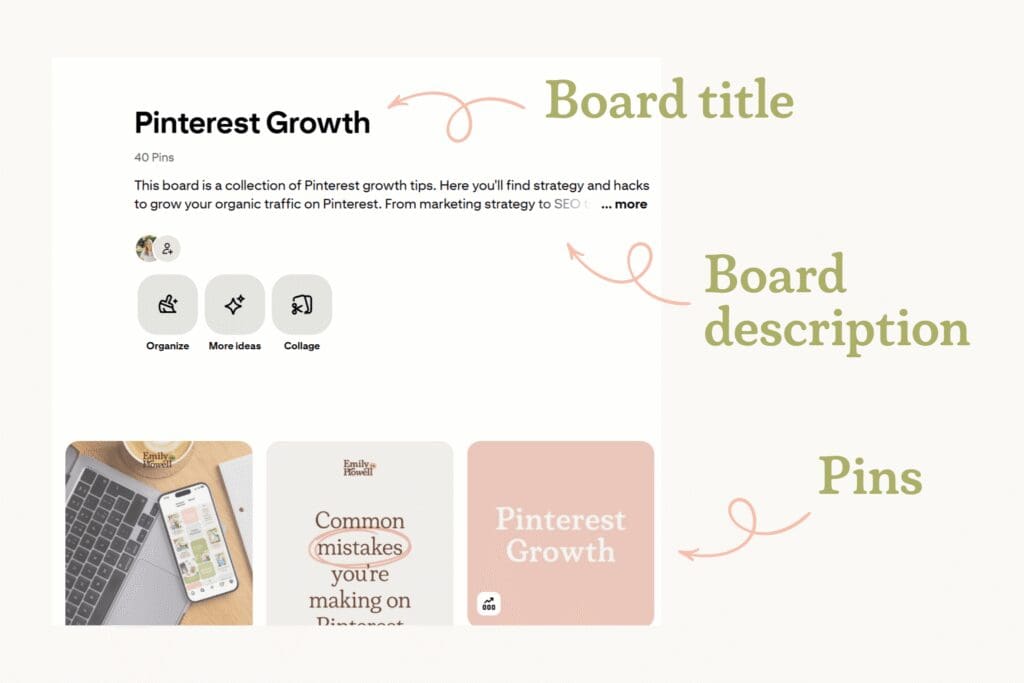
First things first: let’s talk about what exactly is a Pinterest board. A Pinterest board is basically a digital folder where you save pins around a specific topic. Think of it like the corkboard above your desk! But instead of pinning photos and information, you’re pinning images you (and others) create that link back to your website.
So a wedding photographer might have boards like Philadelphia Wedding Venues, Black Tie Wedding Inspo, or Ethereal Wedding Aesthetic. A stationer might have boards like Letterpress Wedding Invitations, Save the Date Ideas, or Wedding Invitation Etiquette. You get the idea.
But guess what?! Boards aren’t just for organizing your content. Pinterest uses your boards to figure out what your pins are about and who should see them. When a board has a clear topic and a well-written description, Pinterest can match it (and the pins inside it) to people searching for that exact thing.
The boards on your account are putting in work behind the scenes. When you do them right, they’re a BIG reason your pins get discovered by your dream clients.
How to Set Up Boards on Pinterest
Setting up a board takes about two minutes, but doing it well takes a little more know-how. Here’s how to do both! 😉
Step 1: Create a Board & Name It
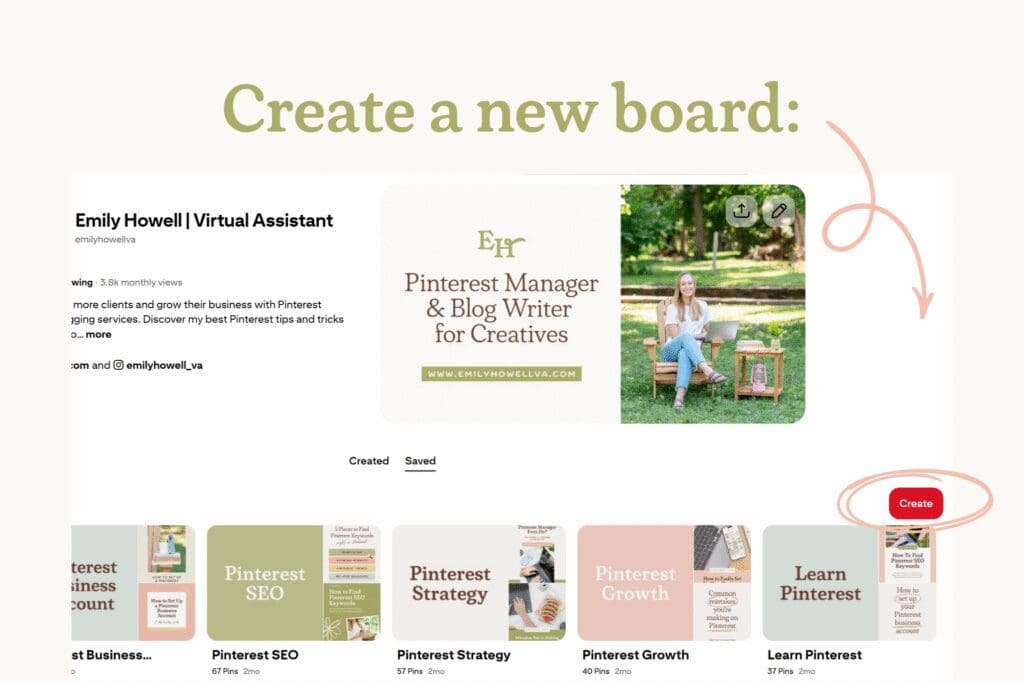
To create a new board, head to your Pinterest profile and click the red button that says “Create”. A new window will pop up where you can give your board a name, make it secret, and add collaborators. But before you click “Create”, the most important thing is to give your board a name.
But what name?
It’s tempting to name your board something cute or vague; however, neither of those help Pinterest understand what your board is about.
In reality, names for Pinterest boards should be made of keywords (terms your client might type into the search bar to find what they want). For example, “Philadelphia Wedding Venues” is searchable. “Maddie & John Wedding” is not.
Need help finding ideas for Pinterest board names? I have a guide for all the places you can find the best Pinterest keywords for your niche.
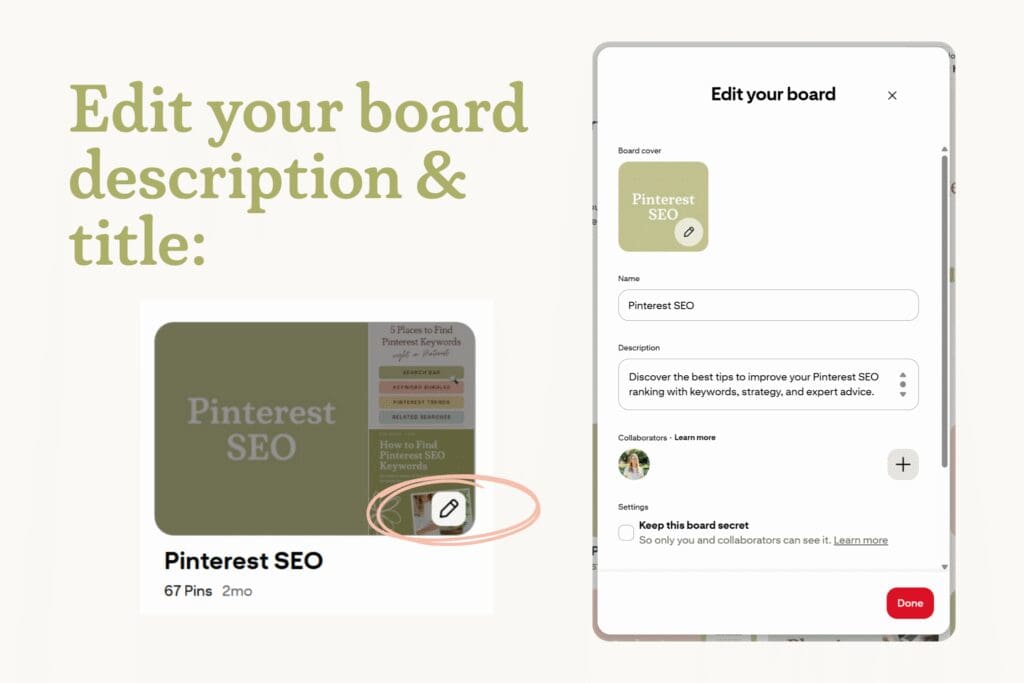
FIELD NOTE: Don’t worry if you biff it—names aren’t set in stone. You can always go back and adjust the title later.
Step 2: Add a Board Description
After you create your board, you should also go back in and add a description. It’s easy to skip this step, but I reallyyy recommend filling it in. Your description is another spot Pinterest uses to figure out what your board is about. The more data the better!
The goal is to write something that sounds like a human wrote it (i.e., don’t just write a list of keywords). A few things to keep in mind:
- Keep it under 500 characters
- Write in full, natural sentences
- Use relevant keywords throughout
- Skip the hashtags
A good board description helps Pinterest understand the board and tells the people who click through what they’ll find inside. Both matter.
How Many Pinterest Boards Should You Have?
As a Pinterest manager, I’m often getting asked this question: “How many Pinterest boards should I have?” There’s no hard and fast rule to how many Pinterest boards you “should” have. Factors that may influence the number of boards you want:
- How much blog content you have
- How many topics (content pillars) you cover in your blog
- How old your account is
- How often you’re planning on pinning
Someone with a new Pinterest account that has 2 content pillars and little time to pin won’t have nearly as many boards as someone with 100 URLs, 5 content pillars, and a dedicated Pinterest manager.
That said, a good starting point for someone who is totally new to Pinterest: 10 boards.
It’s a great foundation and is how many boards I start you out with in my new account optimization service.
If you only blog about one thing, those 10 boards will be variations of that one thing. See how I did that with my content pillar: Pinterest.

If you blog about multiple things, dedicate several boards to each content pillar. You may start out with only 10 boards, but you can continue to add more as your blog grows!
Pinterest Board Dos & Don’ts
As a Pinterest manager, I’ve seen soooo many businesses making mistakes with their boards. The dos and don’ts below come from some of the most common Pinterest errors I see every single day. If you follow these guidelines, you’ll serve your audience well AND stay on Pinterest’s good side.
Board Content
❌ Don’t Create Unrelated Boards
When you’re marketing your business on Pinterest, you want to be creating boards that directly relate to what you have to offer. So a home decor inspiration board belongs on an interior designer’s page. A wedding reception inspiration board belongs on a wedding vendor’s page. A dinner recipes board belongs on a food blogger’s page. See the pattern?
This also goes for any personal boards you might already have on your account. If you’ve been using Pinterest for years and have boards like Bachelorette Party or Kitchen Reno, make those secret so they don’t confuse the algorithm.
✅ Do Create Boards Specifically about Your Content
Think about the topics you blog about, the services you offer, or what products you sell. Then, make boards (and pins) that relate to that content.
Board Creation
❌ Don’t Add New Boards too Quickly
It should come as no surprise that there is a lot of spam on the internet. Pinterest is no different. Because of that, there are spam filters in place. When you create boards too quickly, you are likely to set off those filters and accidentally get marked as spam! GASP!
✅ Do Add Boards Slowly
If you don’t want your perfectly valid account to accidentally get marked as spam, add your boards slowly. That means don’t create a ton of new boards in one day. Spread it out over the month!
Board Sections
❌ Don’t Worry about Board Sections
While your board titles are searchable and do help your SEO, Pinterest has stated that board sections do not help your SEO. They are simply a tool to help regular pinners find their own content easier. As a business, you don’t need to worry about creating sections.
✅ Do Create Separate Boards for Each Section
Instead of breaking a board topic down into multiple sections, use each of those “would-be” sections and make an entirely new board!
Pinterest Board How-Tos
Once you’ve got your boards up and running, there are a handful of small things you might want to do as your account grows: make a board private, merge two boards, or delete or archive a board. Here’s how to do each.
How to Make Your Pinterest Board Private
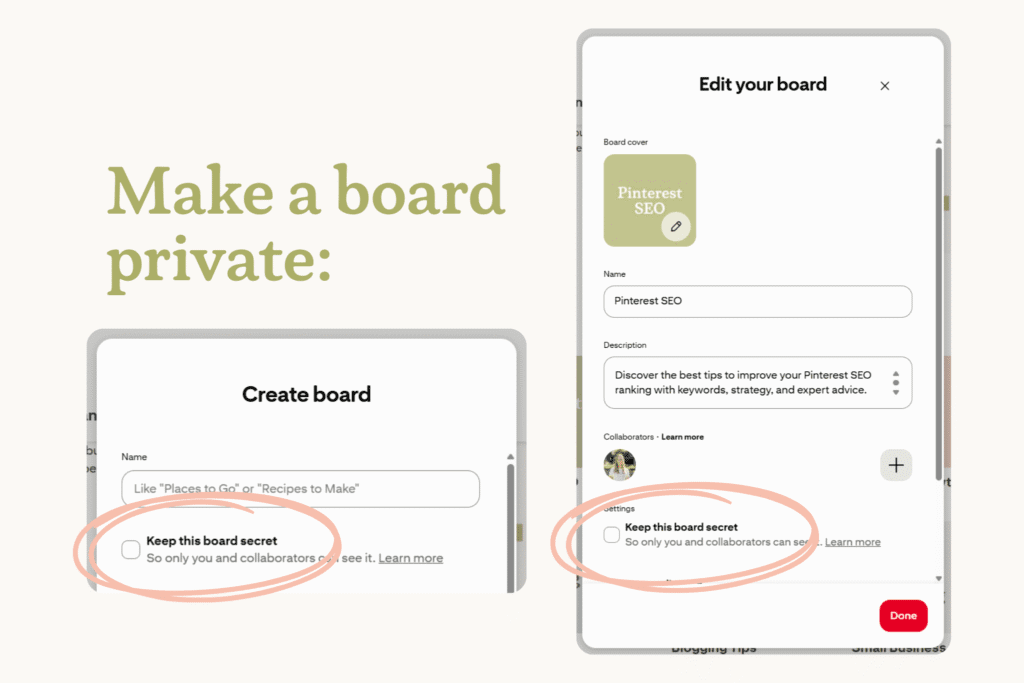
If you want to keep a board off your public profile (maybe you’re still building it, or it’s a personal board you don’t want clients to see), you can make it private. Pinterest calls these “secret” boards.
I’ve got a full guide on how to make secret boards (and why you might want to) for you to check out.
How to Merge Pinterest Boards
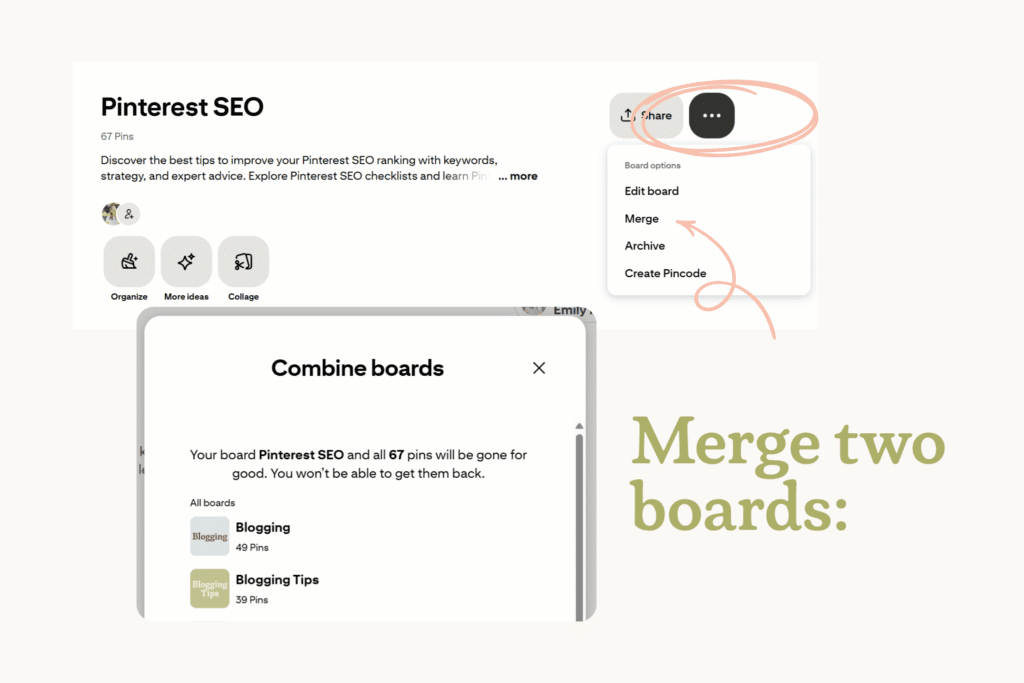
One of your boards isn’t really performing how you want? Not pinning to that board much anymore? You could try merging two boards together.
To do this, click on the board you want to merge with another. Then, click the three dots in the top right of the screen. You’ll see an option that says “Merge”. Select the board that you’d like to merge it with, and you’re all set!
How to Archive Pinterest Boards
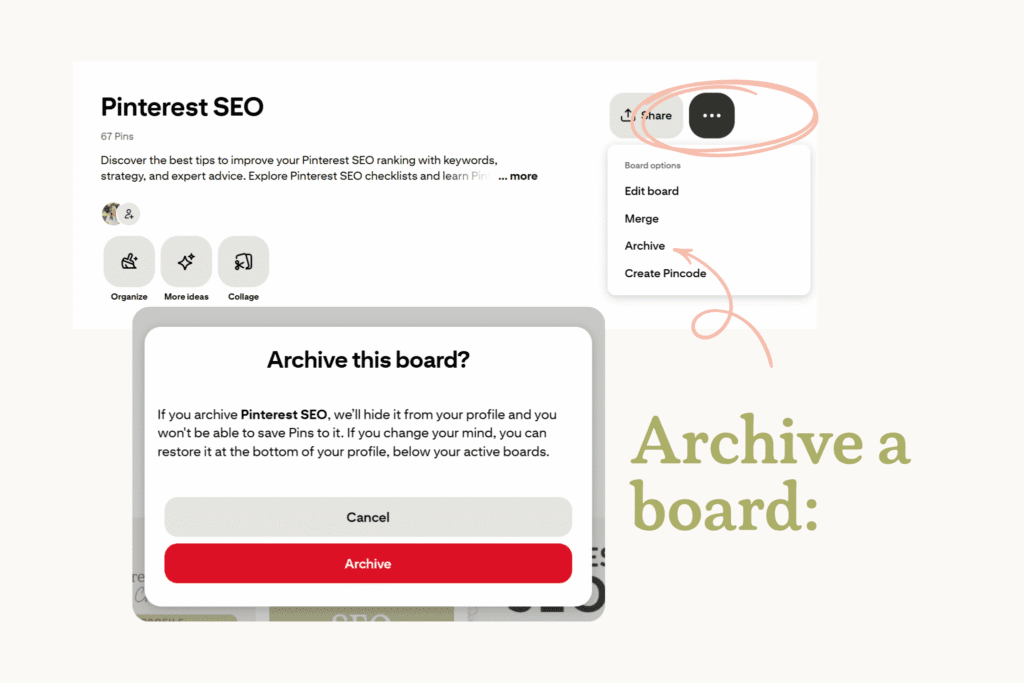
Archiving is a good option when you want to hide a board without losing it forever. Archived boards don’t show up on your public profile or in the Pinterest algorithm, but they’re saved and you can unarchive them later if you change your mind.
To archive, first open the board. Then, click the three dots in the top righthand corner and select “Archive.” It moves out of your active boards and into the archive section at the bottom of your profile.
How to Delete a Pinterest Board
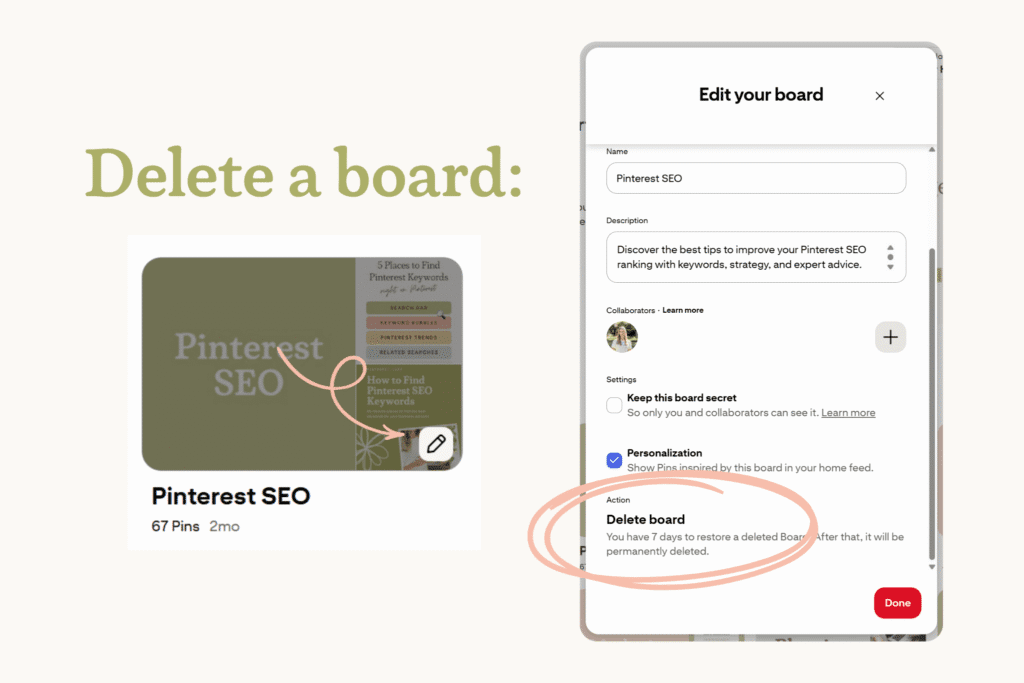
If you’re sure you want to delete a board, hover over the board and click the pencil icon. Scroll to the bottom of the popup screen, and select “Delete board”. Once you confirm, the board and all the pins will be deleted.
Heads up: Pinterest gives you a grace period of 7 days to change your mind. But after that, deleting a board is permanent. You can’t get it (or the pins on it) back once it’s gone.
If you’re not 100% sure you’ll never want the board or its pins, archive it instead.
FIELD NOTE: If you’re considering deleting a board because it’s not performing well, I’d suggest renaming it instead. Pinterest can be fickle. You never know when your pins will start popping off. If you delete a board (and pins), you lose that opportunity.
Get Started Creating Your Boards Today
There’s a lot that goes into setting up your Pinterest boards the right way. The good news is, now you’ve got everything you need to do it. Pick keyword-based names, write real descriptions, follow the dos and don’ts, and start pinning!
If you’d rather not handle it yourself, you don’t have to. I can optimize your account for you in a one-time setup, or take the whole thing off your plate with full-service Pinterest management.
Either way, your dream clients are already on Pinterest. Now they can finally find you.
Any questions I didn’t answer about Pinterest boards? Let me know in the comments! 👇
📌 Pin this guide for later!


+ Show Comments
- Hide Comments
+ add a comment